Main Setup
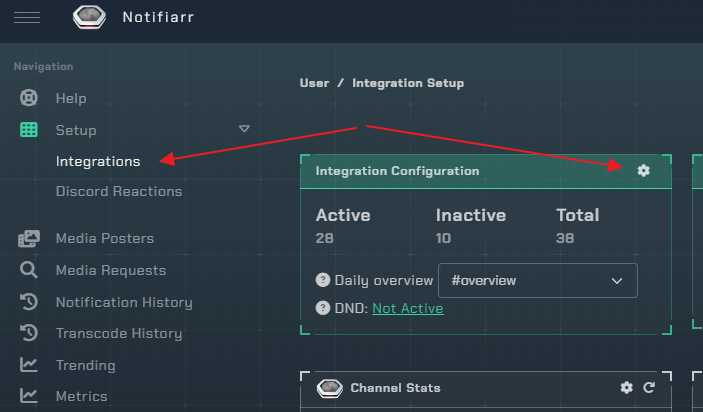
- Open the integrations page
- Click the cog wheel (Card view). All available integrations have to be enabled before they can be used.
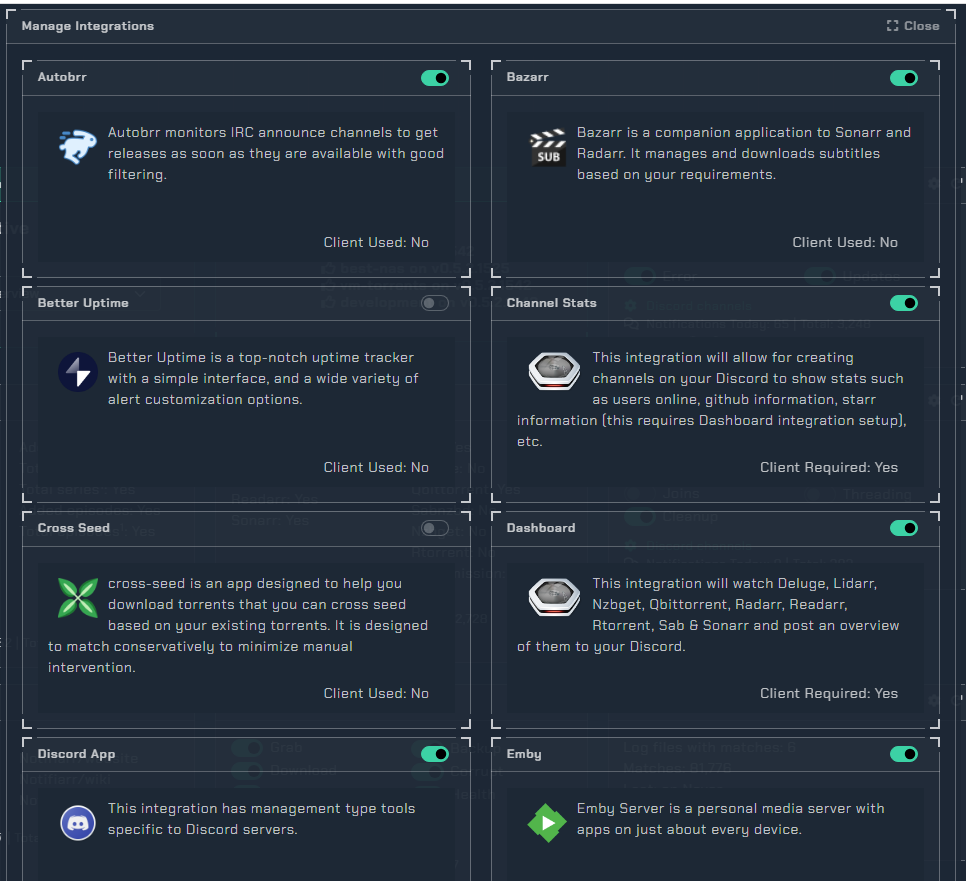
- Once you open the
Integration Configurationyou only need to toggle on/off what you want to use.
View Modes
The integrations page supports two layout modes:
- Card View - Displays each integration as a card with a summary, settings cog, and reload button
- List View - Displays integrations in a sidebar list; select one to view its settings in the main area
Toggle between views using the icons in the top right corner of the page.
Integration Configuration Card
The first card on the page shows:
Active/Inactive/Total- Counts of your enabled vs. available integrationsDaily overview- Select a Discord channel to receive a daily summary of notifications sent per integration (sent around 11:50 PM)DND(Do Not Disturb) - Configure time windows to stop notifications for specific integrations
Reactions Setup
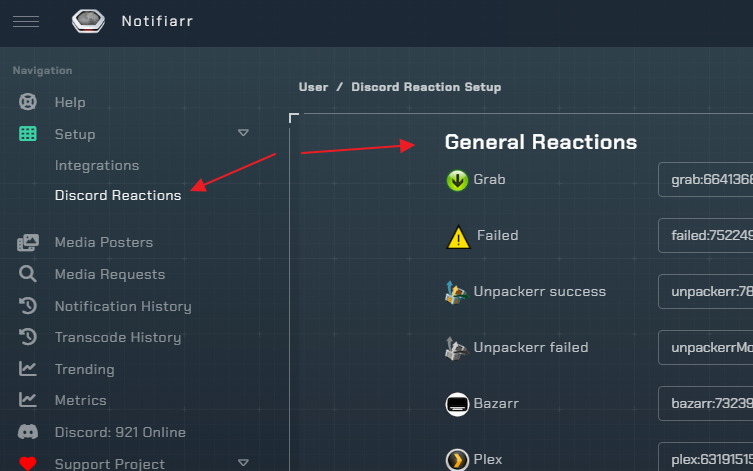
-
You can use any emoji you prefer for reactions, however, if you would like to use the existing set of emoji provided by Notifiarr, visit notifiarr-reactions and save the .zip file.
-
After extracting the contents of the zip file, you can choose which emoji you would like to use by uploading them to your Discord server.
-
For instructions on uploading emoji to your server, please visit this article from Discord: discord-custom-emoji
-
Once you've uploaded the emoji you want to use, you will need to find the emoji's ID for your server. To do this:
-
Go to any channel on your server and type
\:emoji_name:(replaceemoji_namewith the actual name/alias you are using for the emoji when you uploaded it to your server) then press Enter. -
You will see a message in your chat that looks like
<:emoji_name:1069872535814496896>. In this example,emoji_namerepresents the name/alias of the emoji, and the string of numbers after the colon is the emoji ID. -
Copy this value, without the brackets or leading colon (in this example, you would copy
emoji_name:1069872535814496896) and paste the results in the Discord settings field that corresponds to the reaction you are using the emoji for.
Discord Server Missing from Dropdown
- This should only be an issue if you linked your Discord account to Notifiarr before creating the server.
- If you created the server after you already authorized your account, give it 5 minutes and re-authorize so it re-fetches the server list.