Snapshots
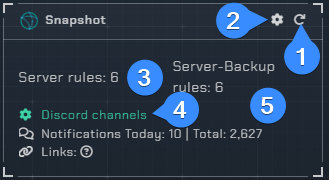
- Reloads the integration.
- Opens the integrations settings.
- A list of locations which have the Notifiarr client installed.
- Opens up the Discord channel selection menu.
Integration Settings Menu

Click the cog icon to open the integration settings for the Snapshot integration.
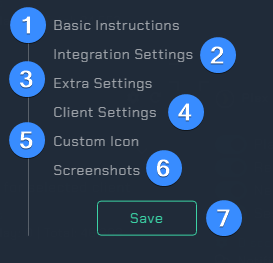
Basic Instructions- Gives you basic guidelines on how to setup this integration.Integration Settings- Allows the user to further configure the integration.Extra Settings- Adjust the extra settings for this integration.Client Settings- Allows the user to set what should be reported in the snapshot and select which client to useCustom Icon- Assign another icon to notifications from this integration. (Subscriber Feature)Screenshots- Shows the expected output once all correctly configured.Save- Saves all your Configured settings and closes the Integration Settings Menu.
Integration Settings
Before all the configuration options are available you must "Pick a client" from the drop-down list. This will typically be the hostname you have for your locally installed Notifiarr client.
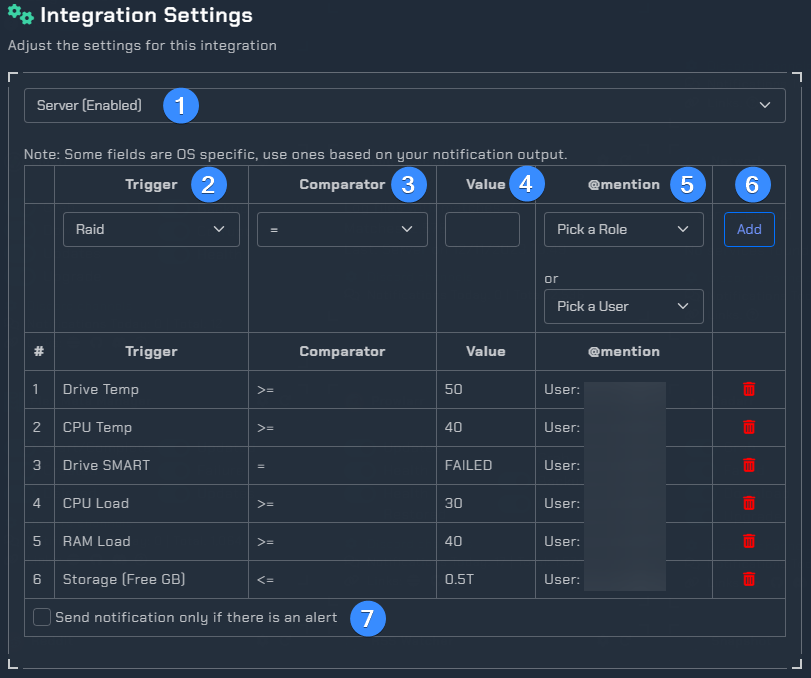
Pick a client- Select the local Notifiarr client you wish to configure for alerting.Trigger- What the Snapshot integration will alert on. The following Trigger options are available.
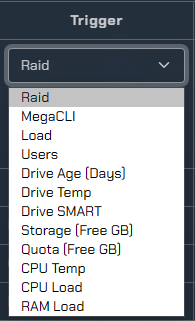
Comparator- Allows the user to configure alerts using one of the following, =, <=, >=, contains OR does not contain.Value- What value shall be used to trigger the alert.@mention- Pick a user or role and Discord will ping you if there is an alert.Add or Delete- Here you can delete any existing alerts you may have or you can add a new alert.- Select this if you only want notifications when an alert is triggered. If left unchecked, you will receive continuous notifications as specified in the interval selection time (e.g. every 30min). This is found under client settings and discussed below.
Triggers and Allowed Values
The triggers used by the snapshot integration have the following allowed values.
CPU Load- Value can be a decimal or whole number.CPU Temp- Value can be a decimal or whole number.Drive SMART- Using the Comparator "contains" with a Value of either "fail" OR "pass"Drive Temp- Value can be a decimal or whole number.Load- Value can be a decimal or whole number.MegaCLI- Using the Comparator "contains" with a Value of "degraded".Quota (Free GB)- Value can be a whole number or decimal followed by G for Gigabyte or T for Terabyte. e.g. 500G or 0.5TRaid- Using the Comparator "contains" with a Value of "_" will alert of a failure.RAM Load- Value can be a decimal or whole number.Storage (Free GB)- Value can be a whole number or decimal followed by G for Gigabyte or T for Terabyte. e.g. 500G or 0.5TSynology HA Status- Synology High Availability cluster status monitoring.Users- Value can be a whole Number.
Note
Some triggers are OS specific. Create rules based on your notification output.
Extra Settings
Allows the user to update existing messages and change between Fahrenheit and Celsius.

Temperature units- Switch between Fahrenheit and Celsius for temperature displays.Update existing messages- When enabled, new snapshots update the existing Discord message instead of posting a new one.Drive map- Remap drive paths in notifications. Format:/find,/replace(one mapping per line). Example:/mnt/remotes/nas/pool-a,/pool-a
Client Settings
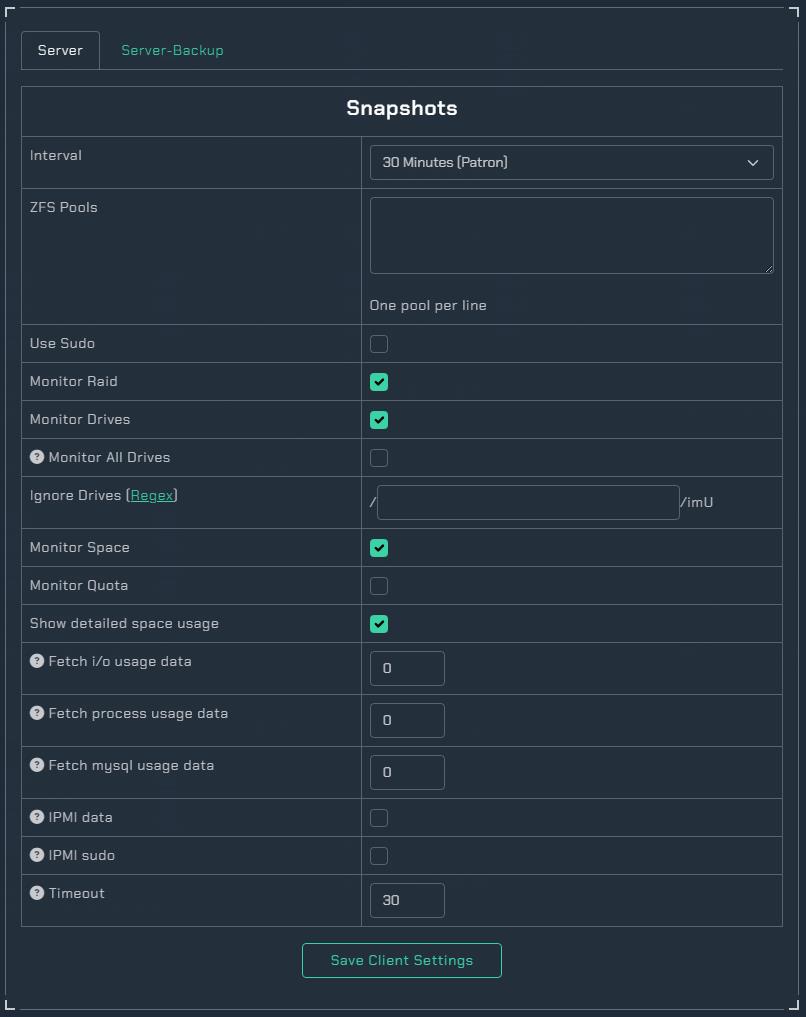
Here are all the different settings for your client. These selections will determine what notifications will be monitored and reported on.
Custom Icon
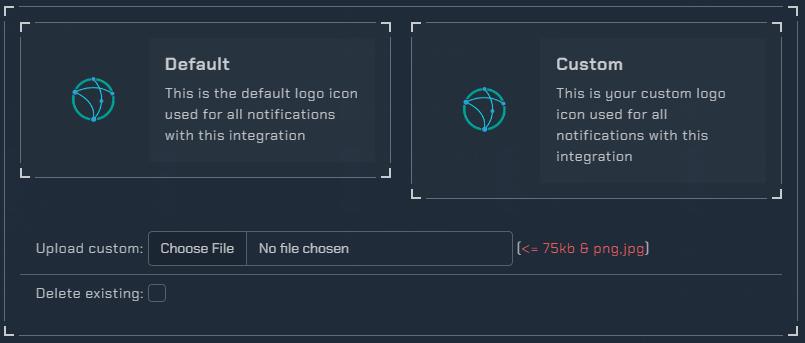
(Subscriber Feature) Assign another icon to notifications from this integration.