Media Requests
Info
This integration allows for requesting media via Discord.
Currently Supported Applications
- Lidarr >= v1
- Radarr >= v4
- Readarr >= v1
- Sonarr >= v4
Trigger options
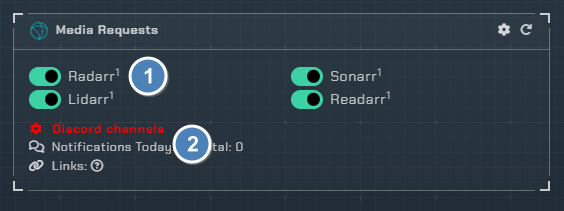
Triggers
Lidarr- Enable Lidarr requests for an instanceRadarr- Enable Radarr requests for an instanceReadarr- Enable Readarr requests for an instanceSonarr- Enable Sonarr requests for an instance
Channel
- Pick the channel on your server to monitor for requests and send optional approval messages.
Configuration
Global configuration

Click the cog icon to open the configuration options for *arr apps.
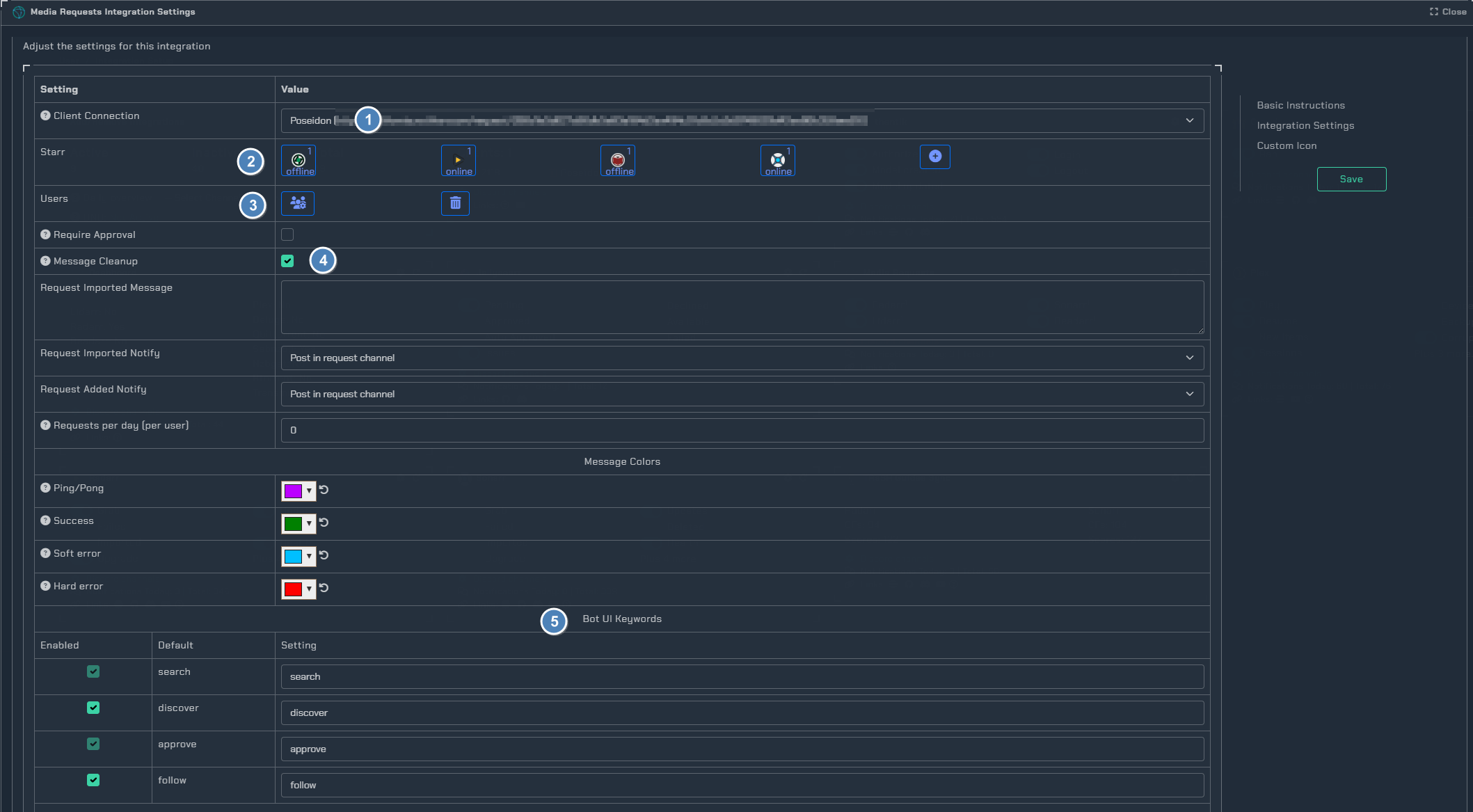
- The client to use for Media Requests
- Default *arr apps; opening them allows for individual configuration. Details below.
- The
+button adds another instance of an *arr app. This also needs to be configured in the Notifiarr client config (or ENV if you use that). Details below. - User based granular options
- Cleanup will remove all the ping/pong messages when adding things, leaving only the final message.
- Default keywords that control the bot, change them however you want.
Settings
Client Connection- Which client is used to make requests. Any local clients linked to your account will show.Starr- Default *arr app instances. Open each to configure individual instance settings. The + button adds another instance.Users- Manage Discord users and their permissions for requests.Require Approval- When enabled, users need approval before requests are added. Open user settings to configure which users can approve. Users who can approve are not required to get approval.Message Cleanup- Cleanup message history after requests are complete. The bot requires Manage Messages permission for this.Request Imported Message- Custom message sent when a request is imported/filled.Request Imported Notify- Where to send the imported notification: post in request channel or post in DM.Request Added Notify- Where to send the added notification: post in request channel or post in DM.Requests per day (per user)- Limit the number of requests per user per day. Zero means no limit. User-specific limits will override this.
Message Colors
Ping/Pong- Color for normal back and forth messagesSuccess- Color for when media is added to a starr appSoft error- Color for when media already exists, for exampleHard error- Color for when the starr app throws an error or the client is down
Bot UI Keywords
These keywords control how users interact with the bot in Discord. Each can be customized to your preference.
| Keyword | Default | Description |
|---|---|---|
search | search | Opens the search/request UI (always enabled) |
discover | discover | Browse available media (can be disabled) |
approve | approve | Approve pending requests (always enabled) |
follow | follow | Follow a request for updates (can be disabled) |
Bot Ping/Pong Keywords
| Keyword | Default | Description |
|---|---|---|
help | help | Show help information (always enabled) |
cancel | cancel | Cancel an active request session (always enabled) |
details | details | Show details about media (can be disabled) |
move | move | Move media between instances (can be disabled) |
Multiple instances
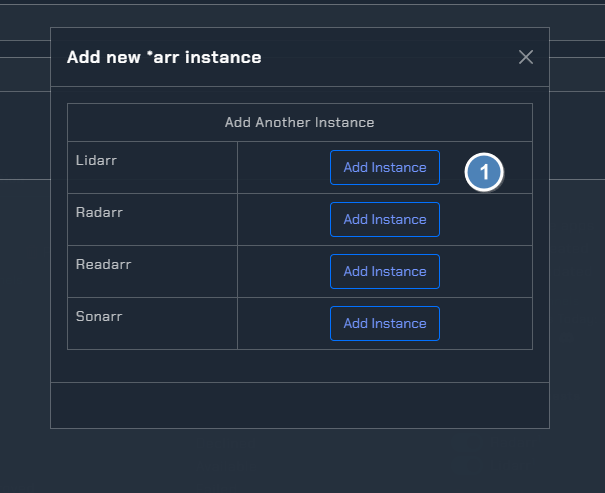
- Add another instance of an *arr app to be used for anything related to the Notifiarr client.
App settings
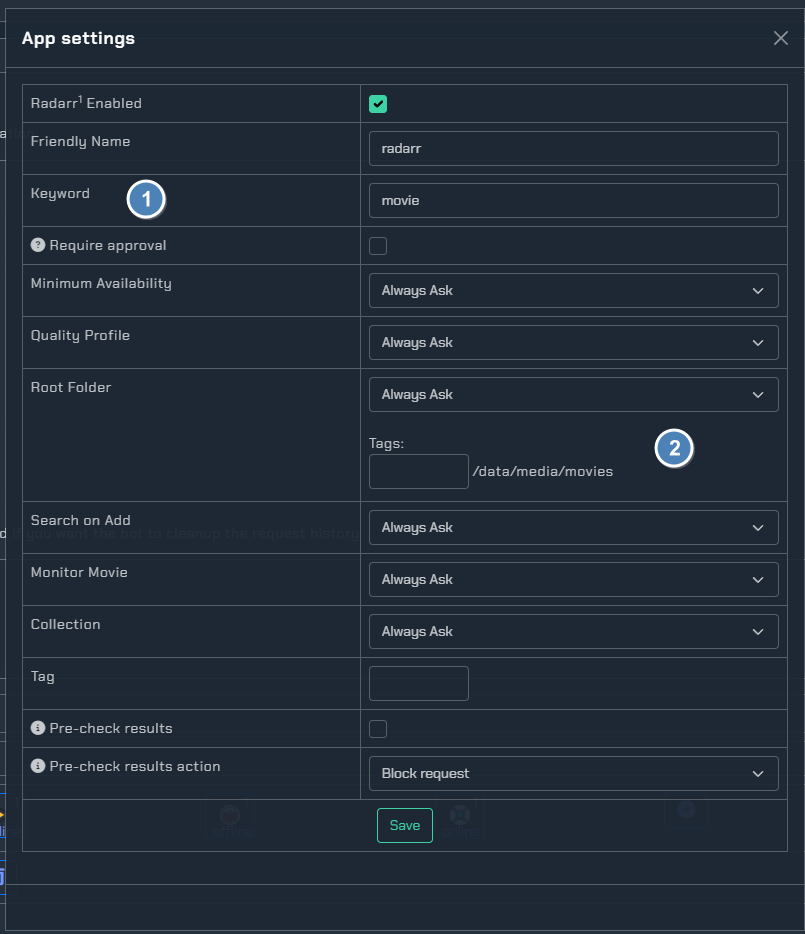
- Keyword the bot looks for when adding something. add movie batman for example.
- Settings used when adding media to *arr.
User settings
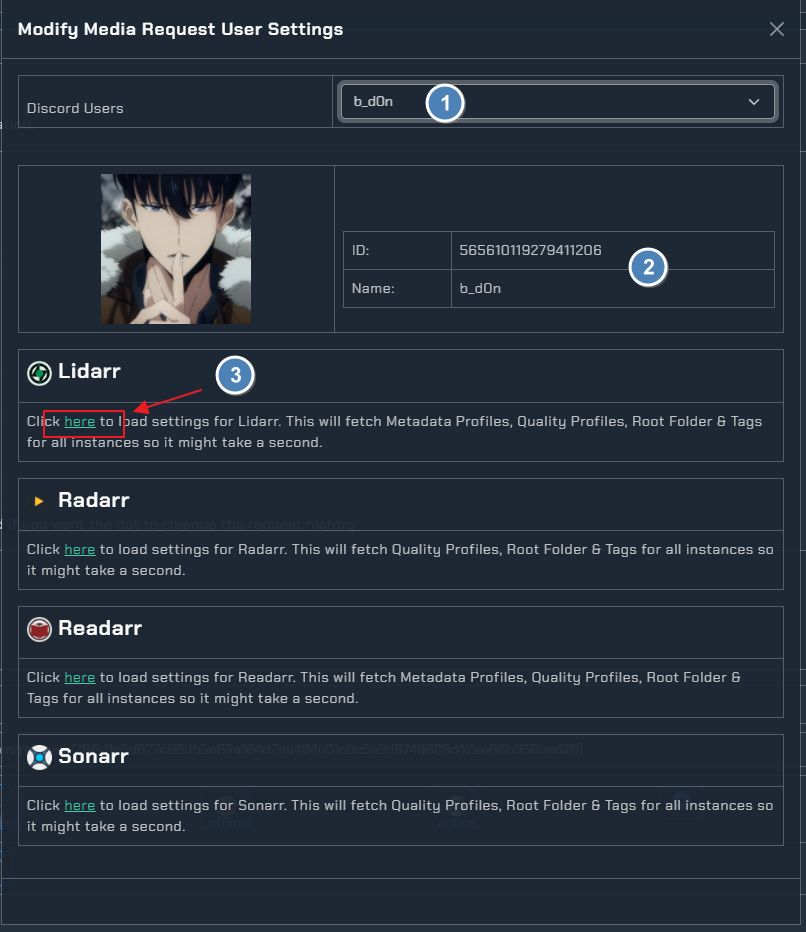
- Discord users that can be used to assign permissions to
- User details
- App settings for the user
Instructions
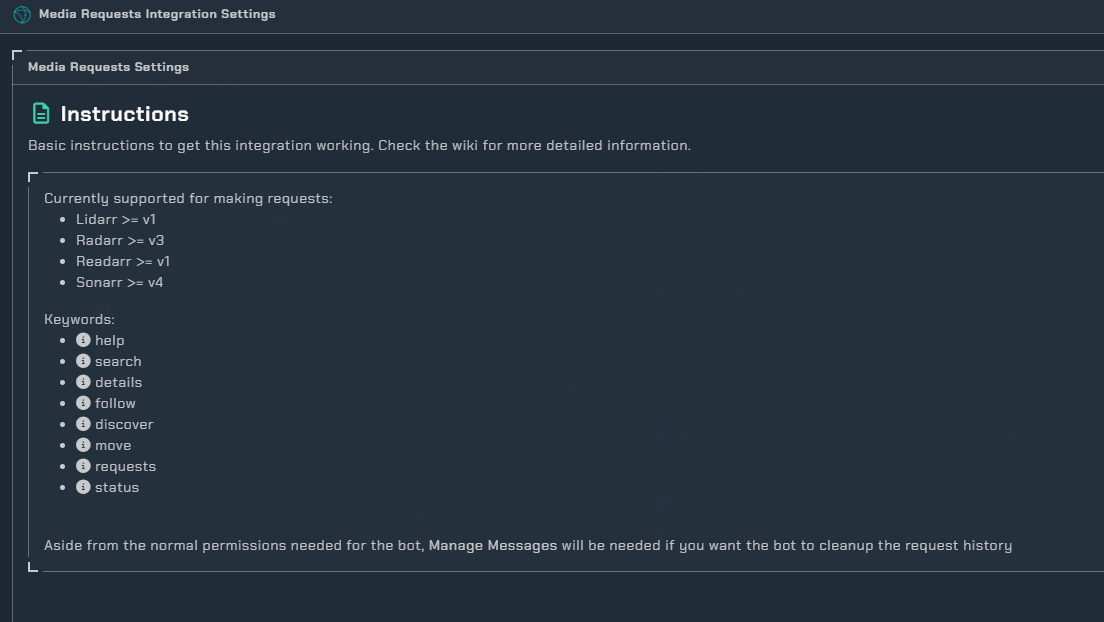
A basic overview on how to use the integration. This may change from time to time on the site without updating the screenshot here.
Discord Troubleshooting
- Type
cancelto end any existing or stuck requests - Type
helpto ensure the bot has access to the channel and can respond