Dashboard
Info
This integration allows for notifications to keep you updated with an overview of some commonly used apps.
The frequency of dashboard updates is controlled by the Notifiarr Client Configuration for the Dashboard for the specified client. All other Dashboard settings are noted below and within the Dashboard Integration.
Note
The bot needs Manage Messages permission for this to work properly.
Supported Apps
The Dashboard supports the following applications, organized by category:
Starr Apps
- Lidarr
- Radarr
- Readarr
- Sonarr
Download Clients
- Deluge
- NZBGet
- qBittorrent
- rTorrent
- SABnzbd
- Transmission
Media
- Plex
Trigger options
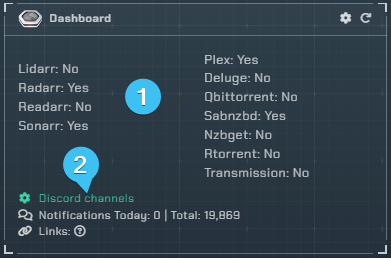
- List of apps that are posting updates
- Used to assign a discord channel to each of your apps to enable notifications
Discord Channel Setup
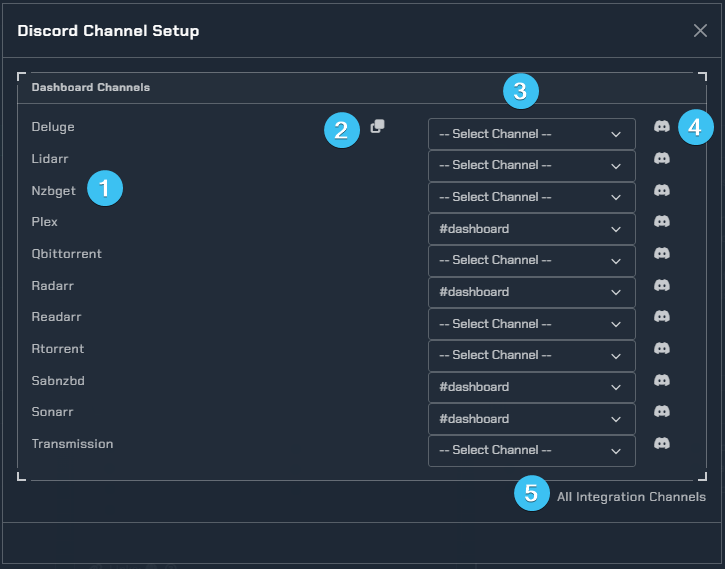
- List of currently supported Apps
- Copies the first Discord channel to all channels below
- Discord channel drop-down selection list
- Discord bot permissions test. If the test passes the user will receive a notification from the bot in the specified channel. If no notification is received, please ensure you have assigned appropriate permissions to the Notifiarr bot.
- Displays all available Discord channels in the users Notifiarr instance
Configuration
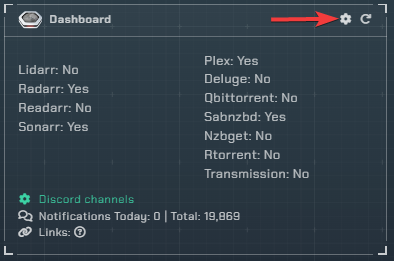
Click the cog icon to open the configuration options for the Dashboard integration and the following window will open.
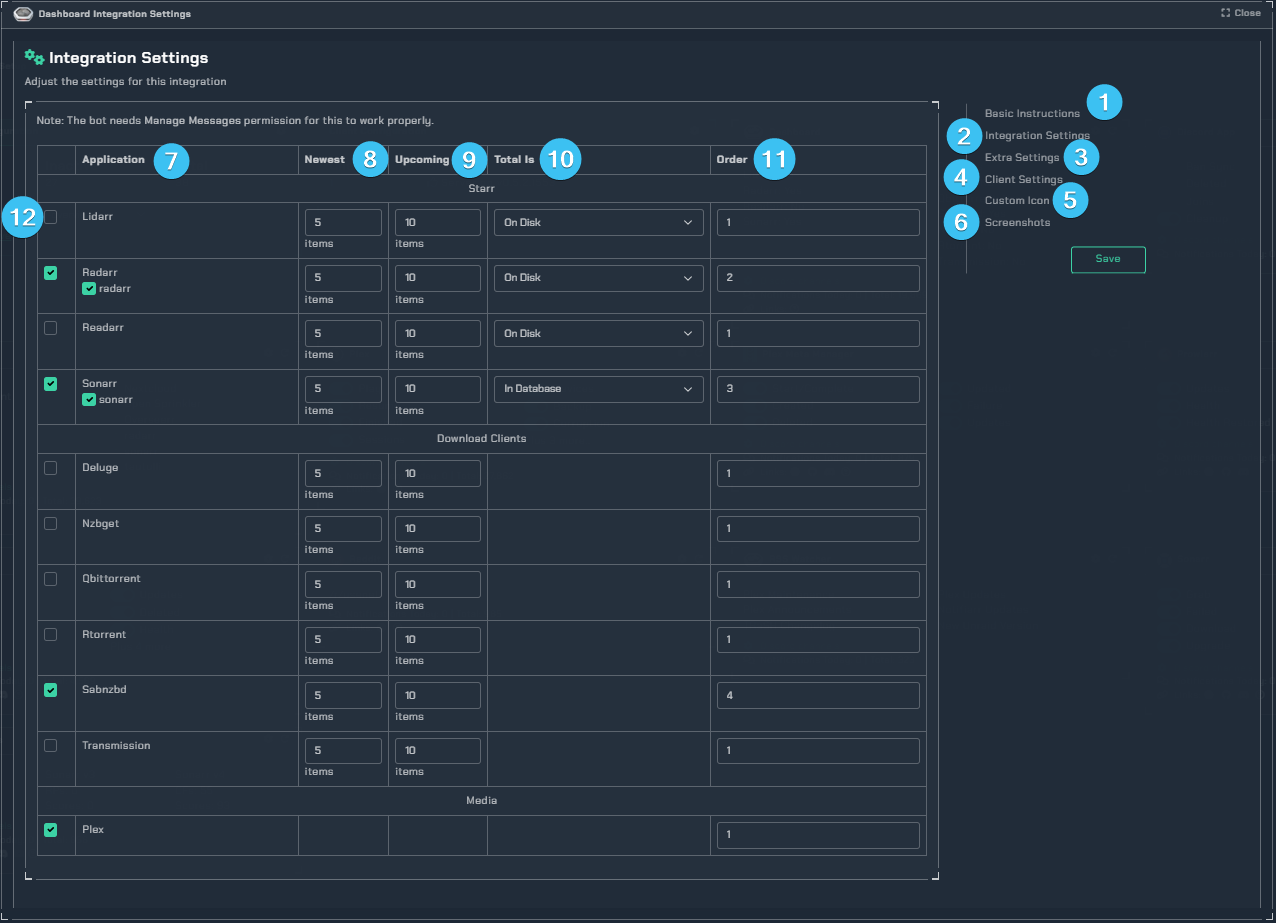
- Initial instructions on how to setup the Dashboard by using the Notifiarr UI.
- In this section you can define the active Apps and further configure them.
- Contains additional Settings and customizations
- Here you can set the update interval of the Dashboard
- Allows you to change the default icon (Subscriber feature).
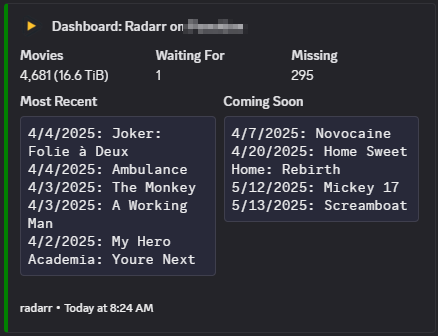
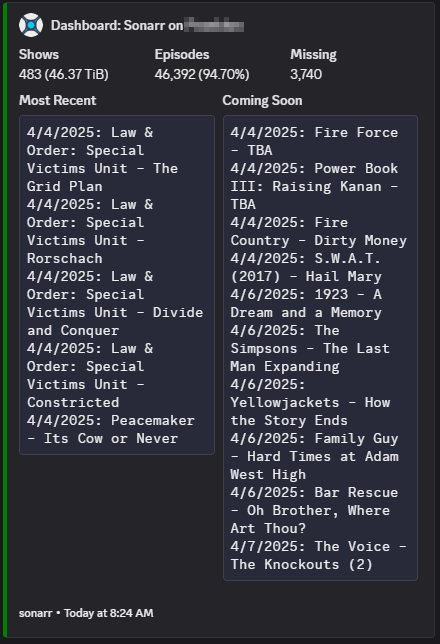
- Some examples of the Dashboard output.
Per-App Settings
Each app has the following configurable options:
- Enabled - Toggle the app on or off in the Dashboard
- Newest - How many of the newest items to see in the message (0-5 for Starr apps, 0-5 for download clients)
- Upcoming - How many of the upcoming items to see in the message (0-10)
- Total Is (Starr apps only) - How the Dashboard should display your completion ratio:
In Database- Compares your downloaded items against what the App considers a complete listOn Disk- Compares your downloaded items to what you have on your disk
- Order - The display order of the app in the Dashboard (minimum 1)
- Template - Customize the notification layout
Note
Starr apps also allow selecting specific instances to include in the Dashboard.
Settings
Hostname in notifications- Include the client hostname in dashboard notificationsNotification behavior- Choose betweenUpdate existing(edits the existing message) orNew messages(posts a new message each time)Force repost- Marks all notifications to be deleted on the next update and reposts new onesReorder dashboard- Clears content hashes and allows all messages to update to fix the order
Warning
When you change the active status or the order, the next update will trigger a delete all and repost everything automatically, so they are in the correct order based on what you have turned on.
Examples
| radarr example | sonarr example |
|---|---|
 |  |