Notifiarr Client Web UI
The client's Web UI is the preferred and recommended method of modifying the Notifiarr configuration. The Web UI provides an easy and intuitive interface to configure Integrations for use with Notifiarr.
Forgotten Passwords
Head back to After Install or Troubleshooting for help getting logged in.

Landing Page
Once logged in you will be taken to the Landing page. From here you are free to navigate the Client and have the power to update settings, configure and trigger integrations and much, much more.
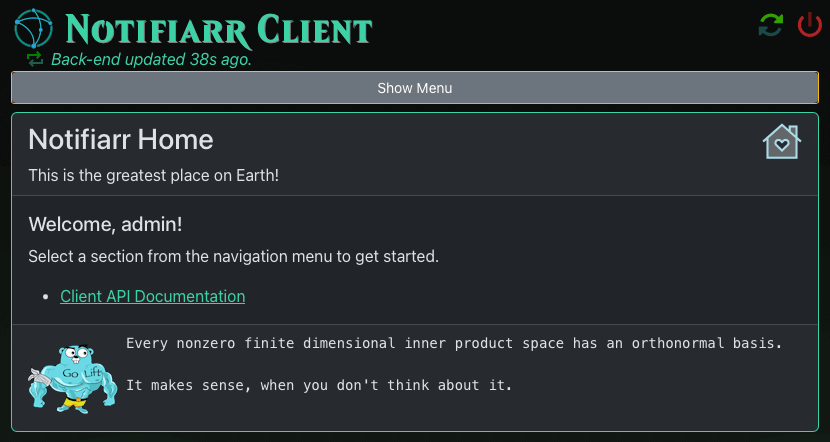
The Web UI is full of documentation. It's even available in multiple languages. If you have suggestions where the UI can be improved, or documentation added, please reach out on Discord, or open a new Issue on GitHub. We encourage and appreciate your feedback!
Client Configuration
Find the primary configuration documentation in the Web UI.
Navigation
The Web UI sidebar is organized into two main sections:
Settings
- Configuration - General settings including API key, bind address, URL base, SSL, logging, and system options.
- Site Tunnel - Manage the persistent websocket tunnel to notifiarr.com. Select primary and backup tunnels.
- Starr Apps - Configure Radarr, Sonarr, Lidarr, Readarr, and Prowlarr instances.
- Download Apps - Configure Deluge, qBittorrent, rTorrent, SABnzbd, NZBGet, and Transmission.
- Media Apps - Configure Plex and Tautulli.
- Snapshot Apps - Configure MySQL and Nvidia GPU monitoring for snapshots.
- File Watcher - Watch log files for lines matching regular expressions.
- Endpoints - Configure scheduled URL polling.
- Commands - Set up custom commands and scripts.
- Services - Configure custom health checks (HTTP, TCP, Process, ICMP Ping, UDP Ping).
Insights
- Actions - View and manually trigger internal client actions, timers, and schedules.
- Integrations - View cached integration data from configured apps.
- Monitoring - View real-time health check results in table or card view.
- Metrics - View metric totals for client configurations.
- Log Files - View, follow, download, and upload client log files.
- System - View system info, build details, storage, network, and startup parameters.
Trust Profile
Accessed by clicking your username in the menu. Configure authentication type (password, website credentials, auth proxy header, or no password), upstreams, and user credentials.